Adding/removing variants for a Shopify product family
Adding/removing variants for a Shopify product family (from Cin7 Core)
2 Scenarios:
1. Two or more items exist as standalone products but need to be added as 'variants' under a new product family OR Add a new variant to an existing product family.
2. An existing family on Shopify needs one or more variants removed from it.
1 - Adding variants to family
Steps:
1. (If it already does not exist) Create a new Product Family in Cin7 Core and add all the essential details.
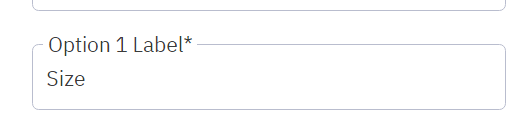
2. Create at least one Option eg. Option1 Label can be set as 'Size'.
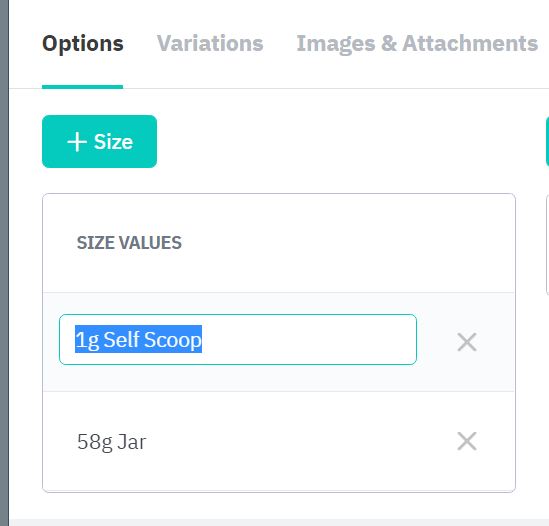
 3. Under the Options tab below, you would add the Option value(s) like '58g Jar' and '1g Self Scoop' manually using the '+' button and save the record.
 4. Under the Variations tab, with the '+' button you can then select 1. the existing product from your inventory from the list and 2. the appropriate Size Value for it.
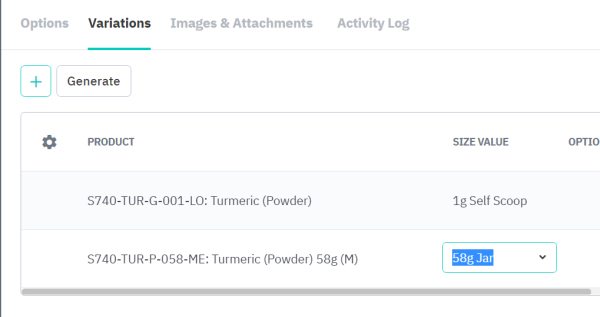
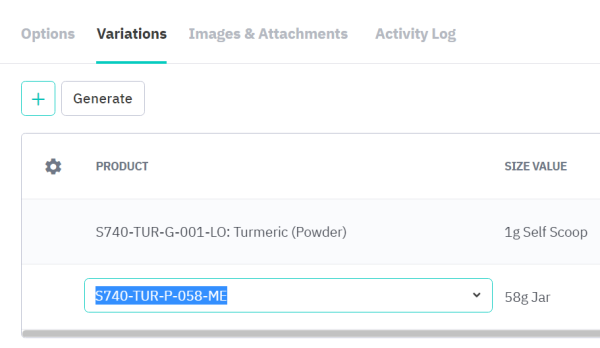
Save the product family record.
5. Listing it on Shopify
- Go to Integration-->My Integrations-->Shopify->(Your Store Name)-->Catalog and search for your variant.
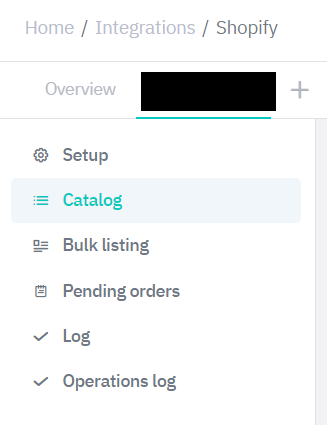
- Search for and select the variant - a popup opens titled 'Shopify product management'.
- Select Price Tier as your retail price tier (verify the price and if it is not correct, go to the product file to manually update it there and then revisit this page)
- Choose the various Shopify Locations you want to list the products using the checkboxes.
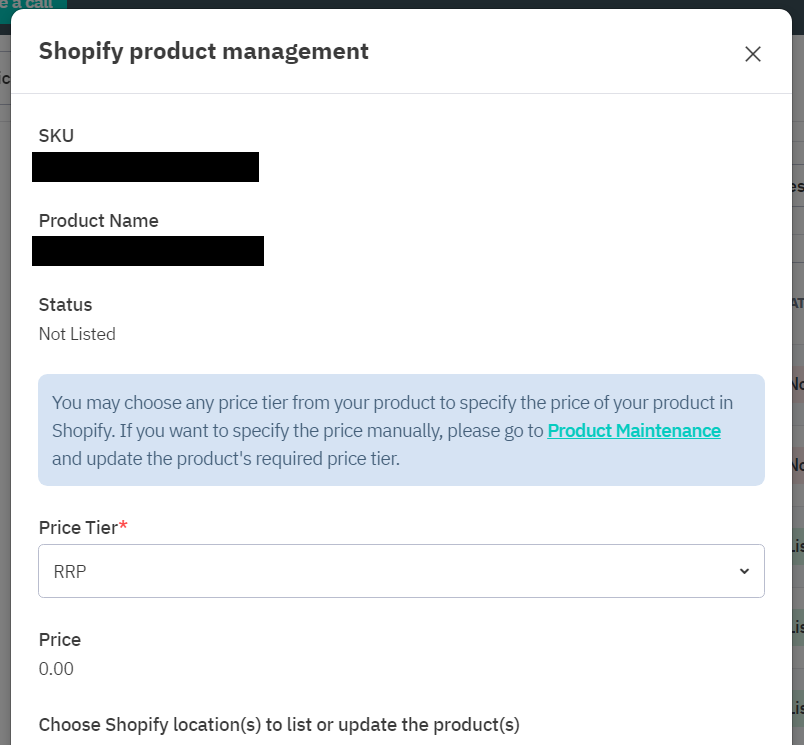
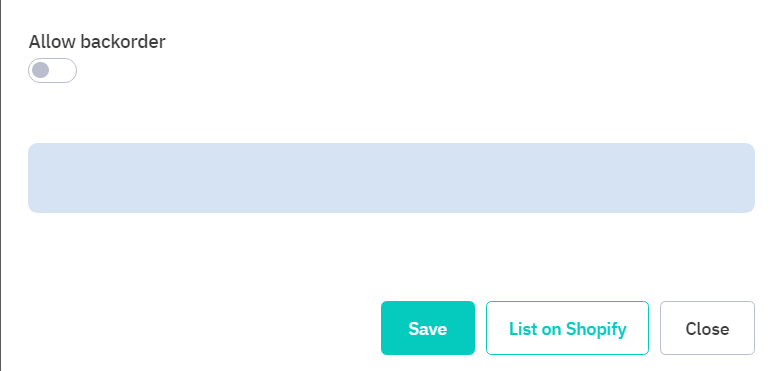
- Select if you wish for the product to allow backorder on Shopify or not.
- Select List on Shopify when all ready. In a few moments, the item should be listed on Shopify as part of the product family.
If that does not work (the products still remain separate on Shopify instead of the same family), a manual approach is needed:
i. Go to the Shopify family and create a new variant under the Shopify family with all the details of the new Cin7 Core variant, including the same SKU number.
ii. Go to Cin7 Core Inventory - Catalog page to list the variant(s) again. The common SKU between the Shopify and Cin7 Core variants should establish the linkage between them.
2 - Removing variants from a family
Note: Items deprecated in Cin7 Core cannot be listed to/unlisted from Shopify to reflect that status, so it is important to remove the item from Shopify first and before making any changes in Cin7 Core. When an item has been removed from a family in Cin7 Core, it automatically changes its status to Deprecated, so you will need to reactivate that product if you want to use it in future
1. Unlist the variant from Shopify
In Cin7 Core, go to Integration-->My Integrations-->Shopify->(Your Store Name)-->Catalog and search for your variant
- Search for and select the variant - a popup opens titled 'Shopify product management'.

- Select 'Remove from Shopify' - in a few moments; Cin7 Core should confirm that your variant has been removed from Shopify.
2. In Cin7 Core, go to Inventory->Search->Product Families
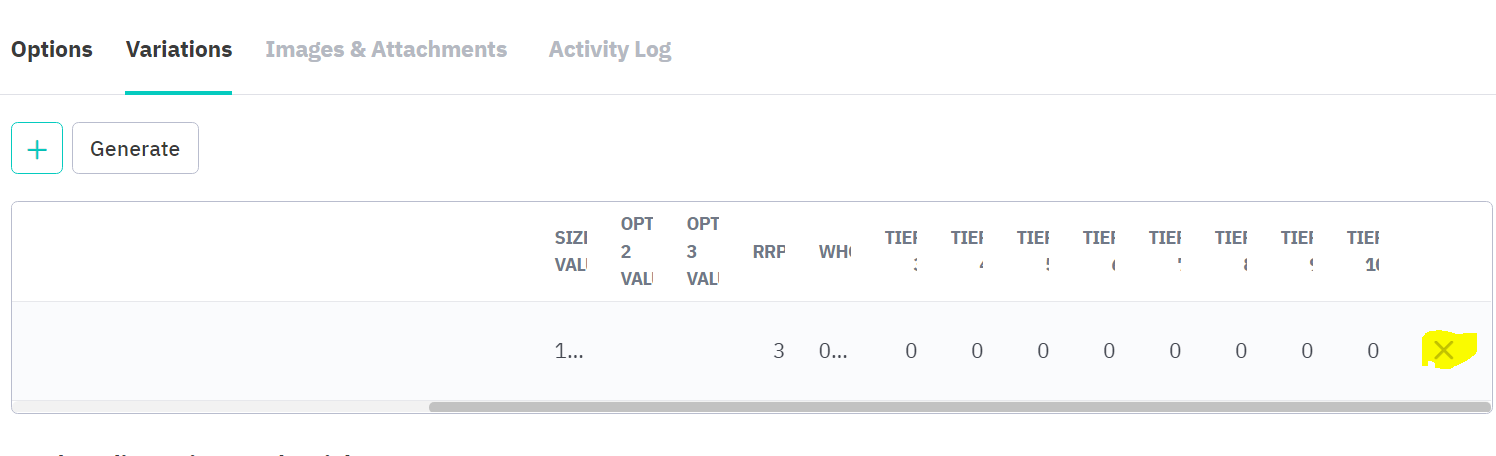
Find the Family you want to remove the variant(s) from. Under the Variations tab, select 'X' against the variant to remove it. Save the record. Note, that once removed from the family, the variant goes to 'deprecated' status (which you can later reactivate).