
How to Resolve Cin7 Core Sync Errors
Sync errors usually happen when there's a problem with the connection or data transfer between Cin7 and the accounting software such as Xero or QuickBooks. These errors can show up in different ways.
These sync errors appear on Cin7’s dashboard in the upper-left corner. The dashboard shows how many records failed to sync with the accounting system and need attention.
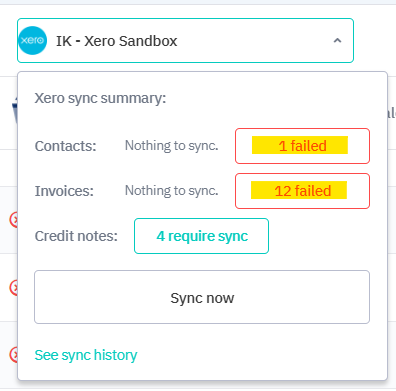
Clicking on the word "Failed" will direct us to a page showing the cause of the errors.
Here are the most common errors in Cin7 Core and how to fix them:
- Current invoice has been paid in Xero and cannot be updated. Please remove payment in Xero and then try to export the invoice. - the invoice is paid and has already sync to Xero
- Resolution: Check if the invoice in Cin7 Core still matches the invoice in Xero
-
YES = skip the sync error by clicking on the dropdown list and changing it to Skipped, this means the record will stay in Cin7 and will be remove from the list of errors
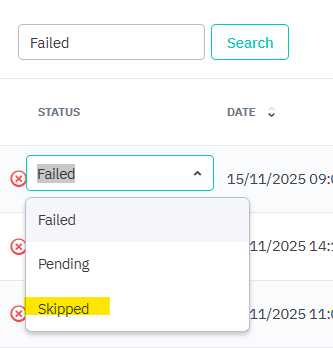
- NO = remove the payment in Xero so Cin7 can sync back the updated invoice amount and payment to Xero
-
- Resolution: Check if the invoice in Cin7 Core still matches the invoice in Xero
- Please remove the incorrect symbols from the product name. - this refers to the special characters in the product's name such as:
-
Resolution: Correct the product name by removing the symbols.

-
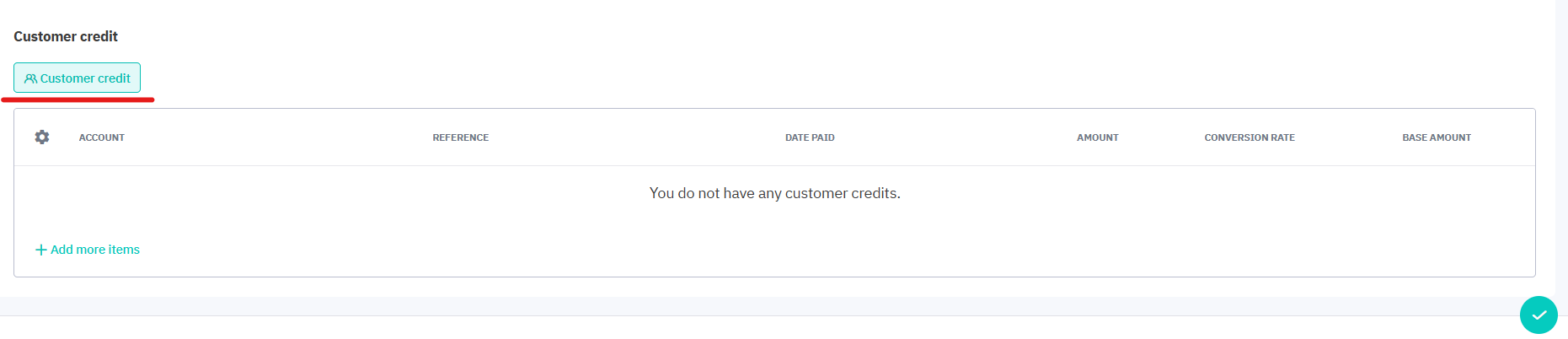
- Payment amount exceeds the amount outstanding on this document - Cin7 only accepts records of payment equivalent or less than the invoice amount, payments greater than the invoice need to be recorded using the Customer Credit button, otherwise it will result in a sync error
- Resolution: Double check the recorded payment in Cin7, investigate why it's more than the invoice amount, there are instances that it might have a typographical error.
- If it's valid that the payment is more than the invoice amount, proceed with recording the payment equivalent to the invoice amount, for the excess, click on Customer Credit at the bottom of the page and record the excess amount, you can use this in payment of the customer's future invoices or refund it back to their account.
Keeping an eye on sync errors is important in ensuring the data stays accurate and the integrations run smoothly. Regularly checking and resolving these issues helps prevent larger problems like incorrect inventory, missing orders, or accounting discrepancies and keeps the business operations running efficiently.