
How to Resolve Cin7 Core Sync Errors
Title: How to Resolve Cin7 Core Sync Errors
Summary:
This guide helps you identify different Cin7-Xero sync errors and explains how to resolve them. Use this process when you encounter these errors and address each one accordingly.
Prerequisites
- Access to Cin7 Core
- Connection to accounting software (Xero or QuickBooks)
- Permission to view and edit invoices, products, and payments
Steps
- Go to the Cin7 dashboard and check the upper-left corner for sync errors.

- Click “Failed” to view the list of records that didn’t sync.
- Select an error to see its cause.
- Apply the appropriate fix based on the error type (invoice, product, or payment).
- Retry syncing or mark the record as Skipped if no action is needed.
Common Issues
Issue: Invoice already paid in Xero
Cause: Cin7 cannot update a paid invoice.
Fix:
- Check if the Cin7 invoice matches Xero.
- If it matches, skip the error.
- If not, remove the payment in Xero and re-sync.

Issue: Invalid symbols in product name
Cause: Special characters in product names can cause sync failures.
Fix: Remove the symbols and save the product.

Issue: Payment amount exceeds invoice balance
Cause: Cin7 only allows payments equal to or less than the invoice amount.
Fix:
- Correct any data entry errors.
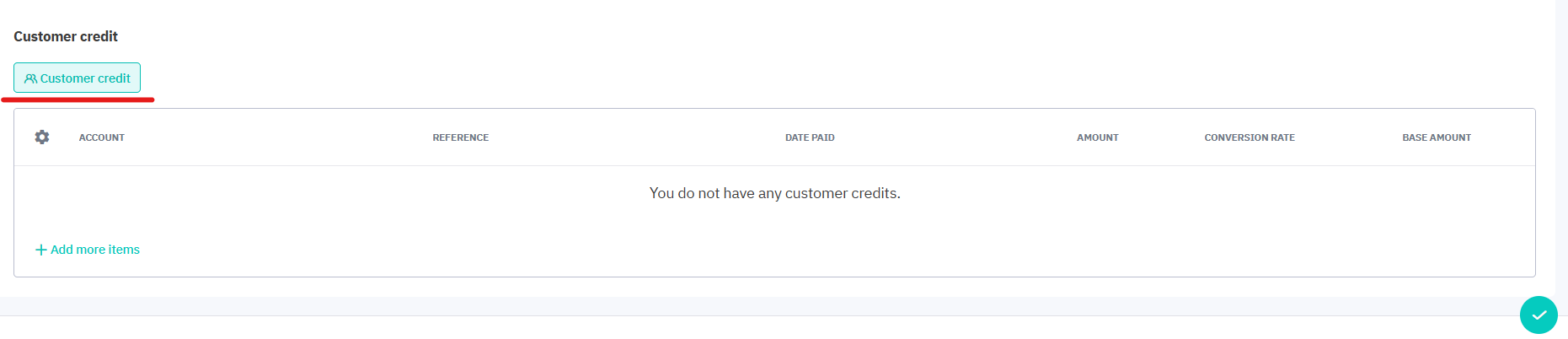
- If the payment is genuinely higher, record the invoice amount as payment and use Customer Credit for the excess.
Important Notes
- Always verify data in both Cin7 and the accounting software before making changes.
- Skipped records stay in Cin7 but are removed from the error list.
- Excess payments can be applied to future invoices or refunded.
Why This Matters
Regularly monitoring and resolving sync errors helps maintain accurate inventory, correct accounting records, and smooth system integration—preventing bigger operational issues down the line.